Google Assistant Turn On: Your Ultimate Guide to Hands-Free Control
Smart home automation only works when it’s effortless. The Google Assistant turn on command is the foundation of hands-free control, allowing you to power lights, TVs, plugs, and entire routines with a single voice command.
Whether you're setting up your first smart bulb or fixing a frustrating “device not responding” error, this updated 2026 guide will walk you through setup, compatibility, troubleshooting, and advanced automation using Google Home and Google Nest devices.
What is the “Google Assistant Turn On” Command?
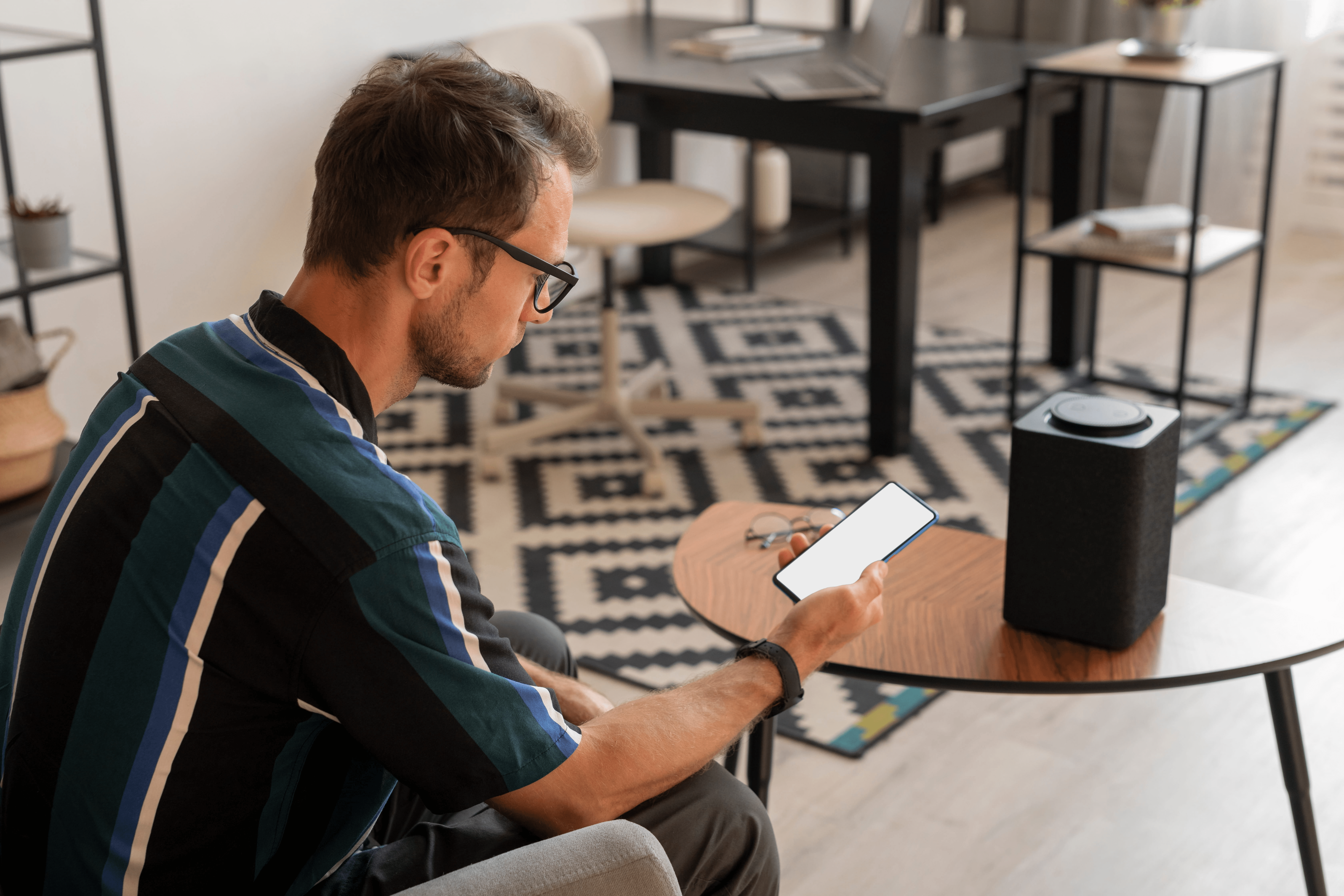
When you use Google Assistant, the "Turn On" command acts as a digital switch. By saying "Hey Google, turn on...", you send an instant signal to your Google Nest speakers or Google Home app to activate:
- Smart Lighting: Control individual bulbs or entire groups.
- Smart Plugs: Power up traditional appliances like coffee makers.
- Entertainment: Activate Smart TVs, Chromecasts, and soundbars.
- Climate Control: Adjust Google Nest thermostats or compatible fans.
Common Voice Command Examples
Try these phrases:
Pro Tip: Name Your Devices Clearly
To avoid voice recognition errors, give every device a unique name in the Google Home app. Instead of "Lamp 1," use "Bedside Lamp." This helps Google Assistant identify exactly which device you want to power on.
How to Set Up Google Assistant “Turn On” Commands
Follow these steps to integrate your devices with the Google Home ecosystem:
Step 1: Install the Google Home App
Download the official app on iOS or Android. Ensure you are signed in with your primary Google account and connected to your home Wi-Fi.
Step 2: Link Your Smart Hardware
Open Google Home and tap the "+" (Add) icon, then select Set up device followed by Works with Google.
Search for your device brand and follow the prompts to authorize the connection with Google Assistant.
Step 3: Assign Devices to Rooms
Organize devices into rooms such as "Living Room" or "Bedroom." This allows you to control multiple compatible devices at once with a single command.
Google Assistant “Turn On” Not Working? Troubleshooting
It can be frustrating when Google Assistant cannot reach a device. Try these troubleshooting steps:
The "Sync" Command
If a new device isn't responding, say: "Hey Google, sync my devices." This refreshes compatible connected devices.
Power and Connectivity
Ensure the physical switch is turned on and the device has power. If the device appears offline in Google Home, check your Wi-Fi connection and restart the router if necessary.
Update Firmware
Check the manufacturer's app for pending firmware or software updates for your smart bulbs, plugs, or other connected devices.
Unique Device Naming
Ensure that devices have clear and unique names. Similar or duplicate names can make it difficult for voice commands to target the correct device.
Security Tip: Protect Your Smart Home
Use a strong password for your Google account and enable two-factor authentication where available. Also keep your smart devices, apps, and firmware updated to receive important security improvements.
Written by Abdul Wahab
Smart Home Fixer covers smart lighting, home automation gadgets, and practical setup guides to help you get the most out of your connected home.
Last Updated: August 22, 2026
Frequently Asked Questions (FAQs)
Most smart lights, plugs, appliances, entertainment devices, and thermostats are compatible. Check the Google Home app for supported devices.
Yes. Google Assistant requires an internet connection to communicate with smart devices.
Yes. Assign devices to rooms and use group commands or routines for multi-device control.
Absolutely. Use the Google Home app to create routines for morning, evening, or special occasions.
Yes. Google Assistant can identify different voices to provide personalized responses and actions.